
User guide
Español Open Krontu
User guide

Get started with Krontu.

How to sign in, create your account and set up your practice, with real screenshots. The data you see belongs to a demo medical center.

We couldn't find that topic. Try another word or write to soporte@krontu.com.

Getting started

Create your account, set up your practice in three steps and pick your plan. The free trial lasts 30 days and needs no card.

Signing in

  1. Open app.krontu.com in your browser or the Krontu app on your phone.
  2. Enter your email and password and tap Sign in. You can also use Continue with Google.
  3. If you forgot your password, tap Forgot your password? and you'll get a link by email to create a new one.
  4. At the top right you can change the language (Spanish, English or Portuguese).

Tip: On a phone with fingerprint or Face ID, after you sign in with your password Krontu offers to use it next time.
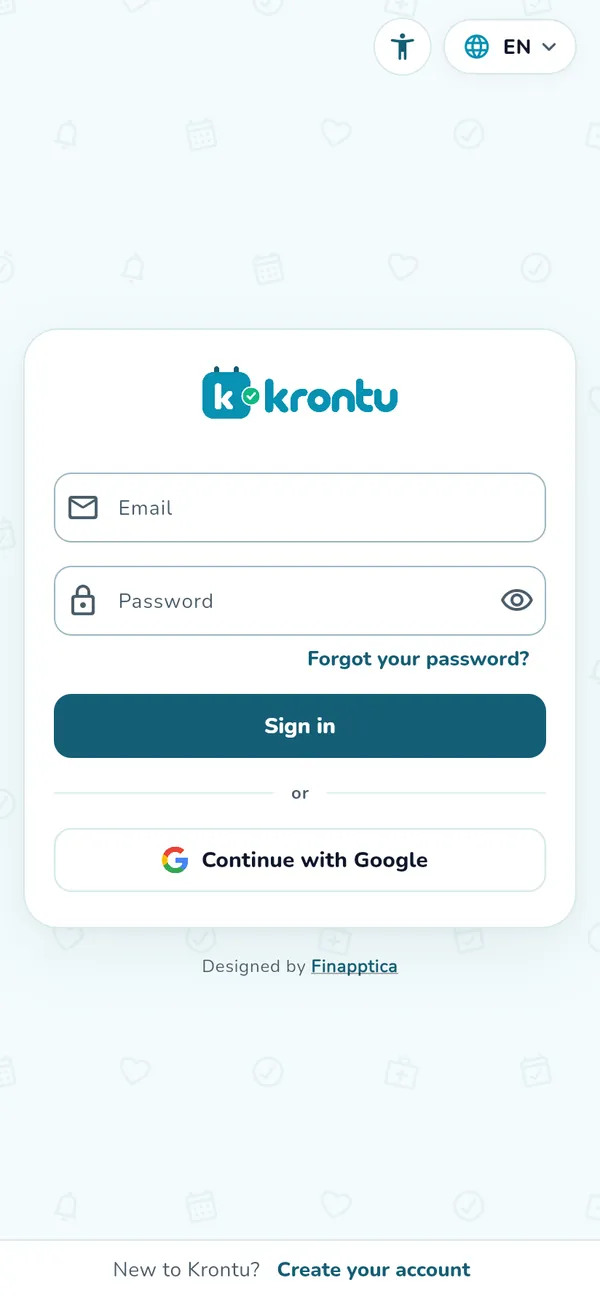
Signing in

Creating your account

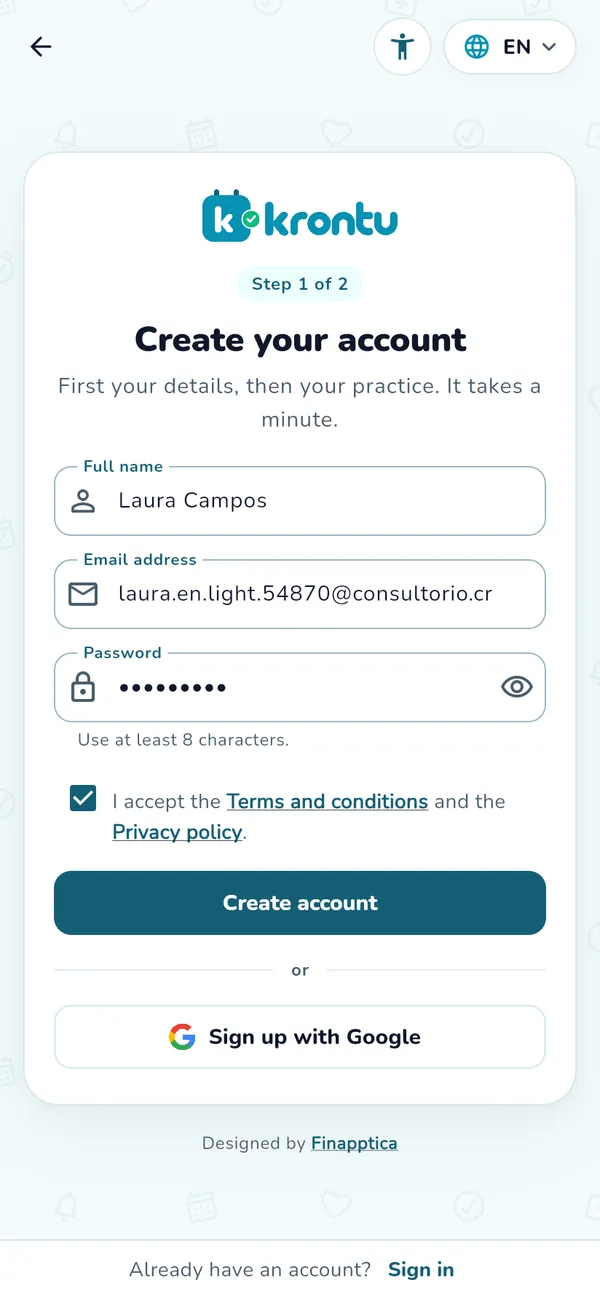
  1. On the sign-in screen, tap Create your account.
  2. Step 1 of 2: enter your full name, your email and a password of at least 8 characters. Accept the terms and privacy policy and tap Create account.
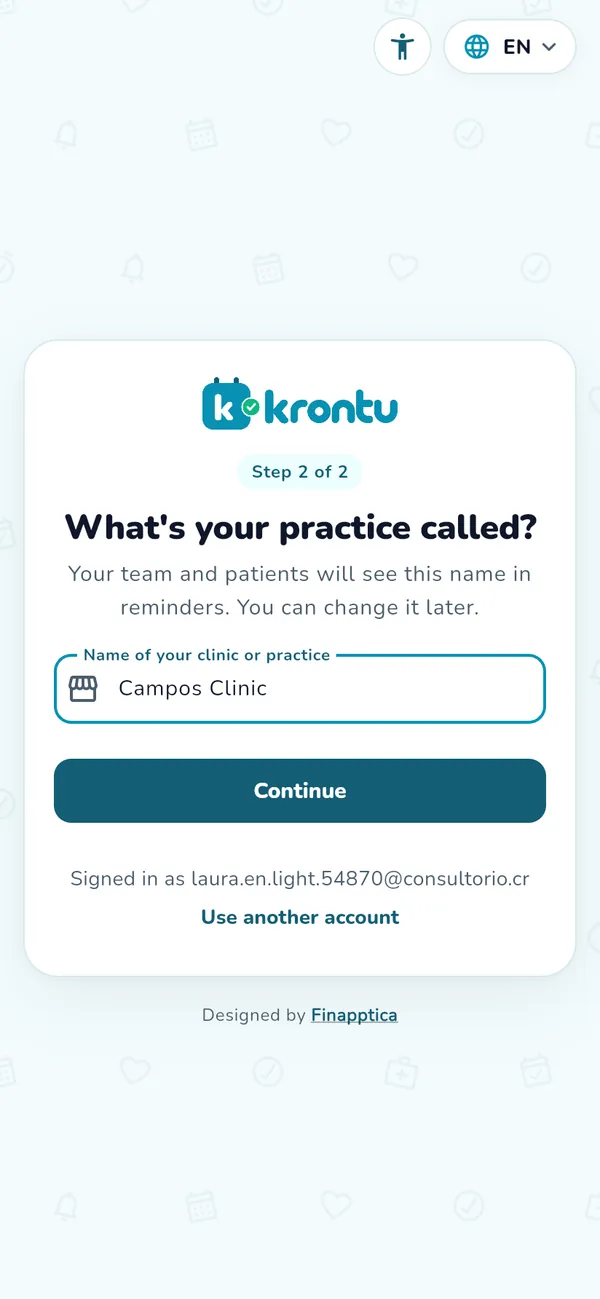
  3. Step 2 of 2: enter the name of your clinic or practice. Your team and your patients will see it in reminders, and you can change it later.
Creating your account

Welcome: set up your practice

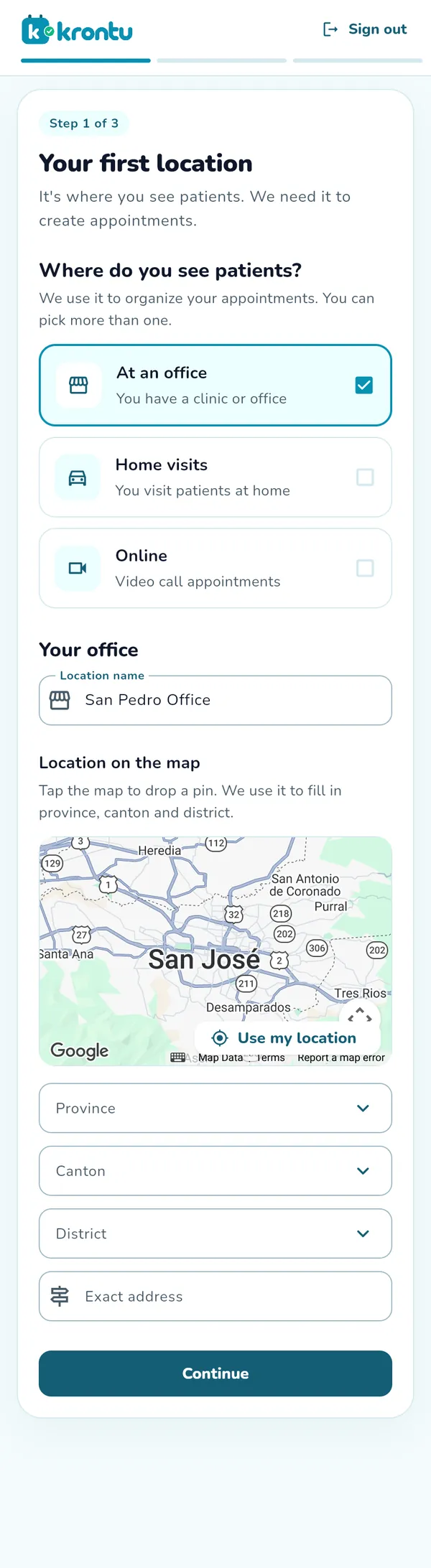
  1. Your first location. Choose where you see patients: at an office, at home visits or online (you can pick several). Name the office, tap the map to drop the pin and check the province, canton and district.
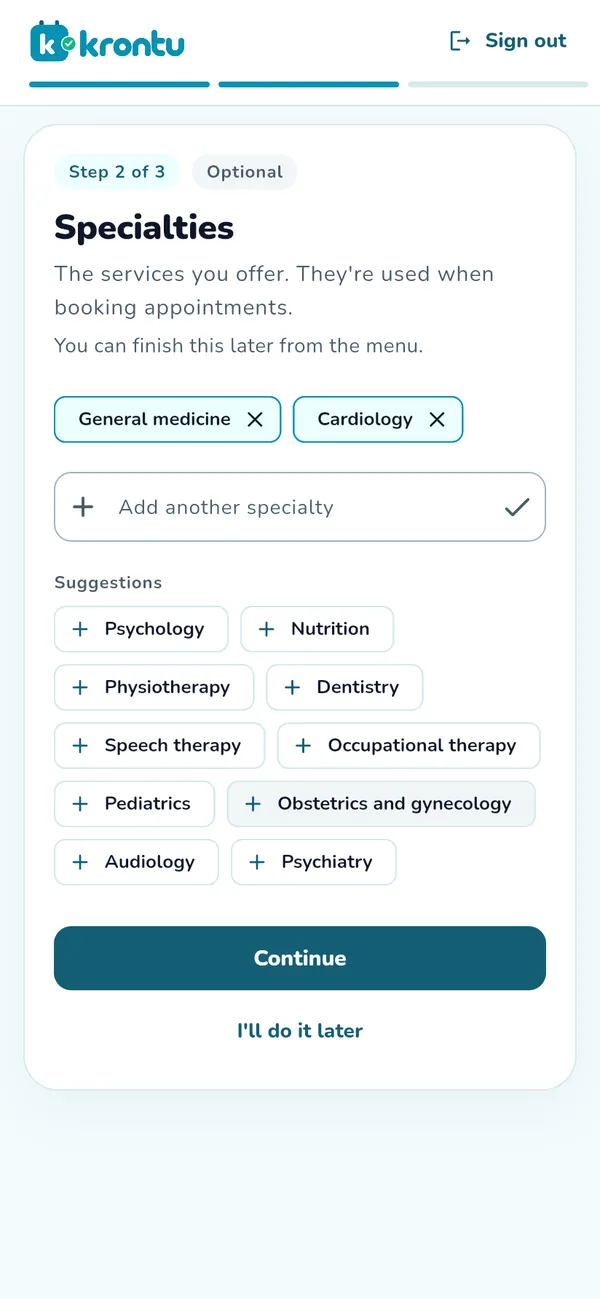
  2. Specialties. Tap the suggestions you offer (general medicine, psychology, physical therapy…) or type another one. They are used when booking and to pick the notes template.
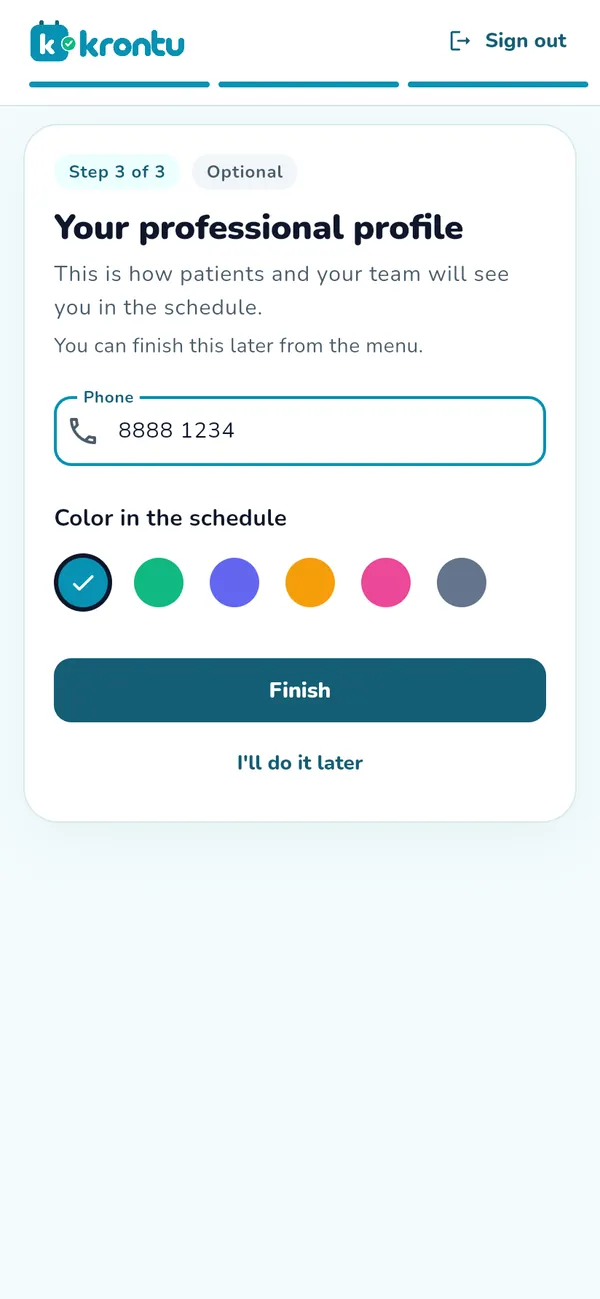
  3. Your professional profile. Add your phone and the color you will have in the schedule. Tap Finish.

Tip: Steps 2 and 3 are optional: with I'll do it later you can finish them from the menu.

Welcome: set up your practice

The full guide is inside Krontu

Schedule, patients, records, Krontu AI, invoicing, reports, the patient portal and more: sign in and open it from My account › Help › User manual.

Sign in to Krontu

Tap a screenshot to see it larger.

Still have questions?

Ask Krontu AI inside the app ("how do I issue a credit note?") or write to us at soporte@krontu.com.